
Portable Expandable Monitors: How Dual-Screen Setups Are Transforming Mobile Work
A laptop screen is a bottleneck. Portable expandable monitors solve it — attaching one or two additional displays via USB-C, folding flat for transport, and turning any café table into a workstation. Here’s how the technology works, what to check before buying, and where the current generation stands.
Affiliate Disclosure: This article contains affiliate links. MiniPCDeals.net participates in the Amazon Associates program and may earn a commission on qualifying purchases at no extra cost to you.
A portable expandable monitor is a secondary display that attaches to a laptop via USB-C or HDMI, extending the desktop across two or three screens. Most models fold flat, weigh between 1 and 3 kg, and can draw power from a single cable. The key considerations are screen size, connection method (DisplayPort MST vs DisplayLink), total weight including stand, and whether the setup runs natively or requires a driver. The JSAUX FlipGo Horizon is a current example: two independent 15.6-inch 1080p panels joined by a foldable Snap Stand, designed for laptops from 13 to 16 inches.
What a Portable Expandable Monitor Is
A portable expandable monitor is a secondary display that attaches to a laptop via a single USB-C or HDMI connection, extending the desktop across two or three screens. It folds flat for transport and typically weighs between 1 and 3 kg depending on screen size and stand design.
The category emerged from a simple frustration: laptop screens are small, and switching between tabs or windows slows work down. A portable expandable monitor adds screen real estate without adding a full desktop monitor. Most models use two panels — either stacked vertically or arranged side by side — that fold together into a package roughly the size of a large tablet.
There are two broad form factors. Stacked designs place one screen above the other, creating a square-like aspect ratio that reduces head-turning. Horizontal designs extend outward to the left and right of the laptop screen. Some models, like the JSAUX FlipGo Horizon, use independent panels joined by a foldable stand that can be positioned in either orientation.
Stacked designs are better for focused work with minimal neck movement — useful for coding, writing, or document editing. Horizontal designs mirror a traditional dual-monitor desk setup and suit workflows that benefit from side-by-side comparison, like spreadsheets or trading dashboards.
How the Connection Works
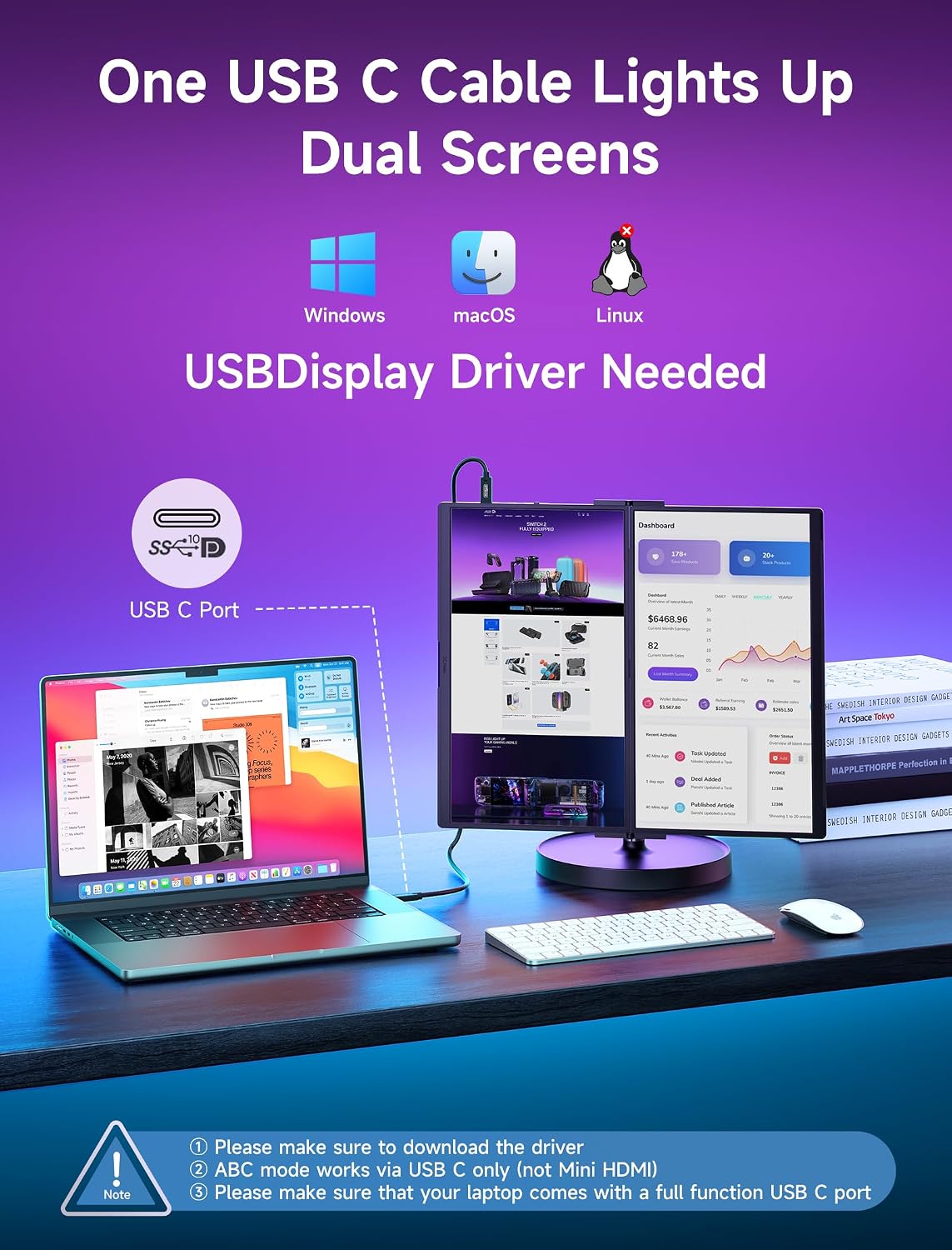
Most portable expandable monitors connect via a single USB-C cable that carries both video signal and power. The two underlying technologies are DisplayPort MST (native, no driver) and DisplayLink (driver-based, wider compatibility).
DisplayPort MST (Multi-Stream Transport) is a native standard built into most modern laptops. It splits a single DisplayPort signal into multiple streams, driving two or three screens from one port without any software. It works out of the box on Windows and most Linux distributions. On macOS, MST support is limited — MacBooks generally cannot drive multiple displays from a single MST connection.
DisplayLink uses a software driver to compress and transmit video data over USB. Because it operates at the driver level rather than the display protocol level, it works on a wider range of devices — including M1, M2, and M3 MacBooks that lack native MST support. The trade-off is a small amount of CPU overhead and the need to install the DisplayLink driver before the monitor will function.
| Feature | DisplayPort MST | DisplayLink |
|---|---|---|
| Driver required | No | Yes |
| Windows support | Native | Yes (driver) |
| macOS support | Limited / no | Yes (driver) |
| Linux support | Native | Community driver |
| CPU overhead | None | Minimal |
| Typical use case | Windows/Linux laptops | MacBooks, mixed environments |
What to Check Before Buying
Five factors determine whether a portable expandable monitor will work for your setup: connection method, laptop size compatibility, total weight, power delivery, and screen brightness.
1. Connection method
If you use a Windows or Linux laptop, DisplayPort MST is the simpler choice — no drivers, no setup. If you use a MacBook, confirm the monitor supports DisplayLink and that you are willing to install the driver. Some models offer both MST and DisplayLink on separate USB-C ports, letting you choose.
2. Laptop size compatibility
Most expandable monitors are designed for laptops between 13 and 16 inches. The attachment mechanism — usually magnetic or clip-based — depends on the laptop’s thickness and hinge design. A monitor designed for a 14-inch MacBook may not grip a thicker gaming laptop securely.
3. Total weight
The weight of the display panels is only part of the equation. If the system uses a separate stand, that stand adds significant weight. A 15.6-inch dual-screen setup with a Pro stand can weigh 2.5 kg or more — comparable to carrying a second laptop. If portability is the priority, check the total weight with the stand included.
4. Power delivery
Many setups can run from a single USB-C cable connected to the laptop. Higher-resolution panels or full brightness settings may require an external power source. Some stands include a power pass-through feature that charges the laptop while the monitors are connected — useful if your laptop has limited USB-C ports.
5. Screen brightness and color
Portable panels typically range from 250 to 500 nits. A 250-nit screen is fine in dim indoor environments but struggles in bright offices or outdoor use. If you work in varied lighting, aim for 300 nits or higher. Color gamut coverage (sRGB, AdobeRGB, P3) matters for photo and video work; for office tasks, it is less critical.
JSAUX FlipGo Horizon — Two 15.6″ 1080p Panels · Snap Stand · USB-C
Designed for 13–16″ laptops. Magnetic attachment, foldable design.
A Current Example: JSAUX FlipGo Horizon
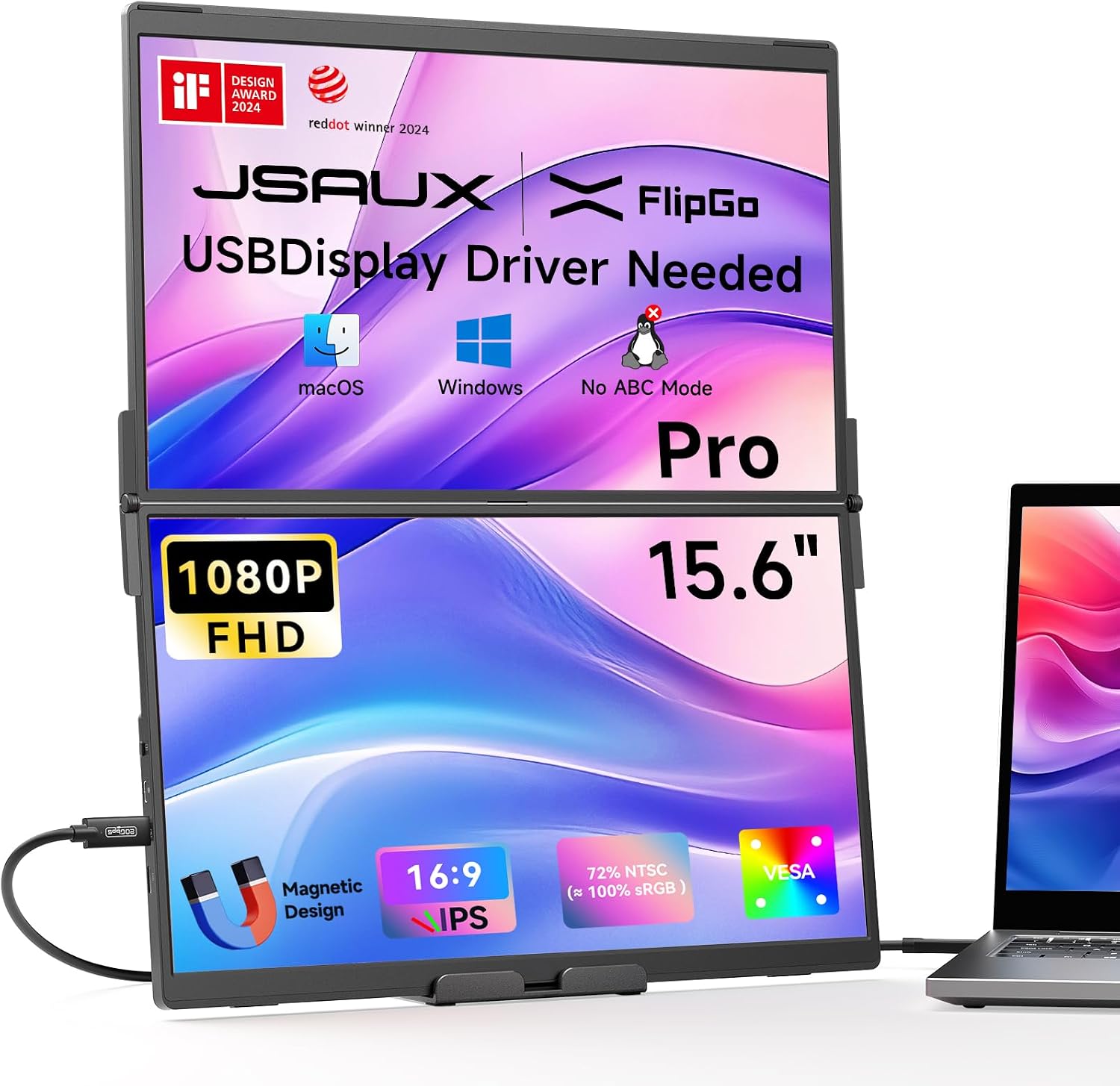
The JSAUX FlipGo Horizon is a portable dual-screen system built around two 15.6-inch 1080p IPS panels joined by a foldable Snap Stand. It is designed for laptops from 13 to 16 inches and connects via USB-C.
Unlike stacked dual-screen designs that place one panel above the other, the Horizon uses two independent displays connected by a hinge. This allows the panels to be positioned in landscape or portrait orientation, and the stand supports the weight of the monitors rather than relying on the laptop hinge.
Specifications at a glance
| Screen size | 2 × 15.6 inches |
|---|---|
| Resolution | 1920 × 1080 (Full HD) |
| Panel type | IPS · 60 Hz · 800:1 contrast |
| Brightness | 300 nits |
| Color gamut | 100% sRGB |
| Touch support | No |
| Connectivity | 2 × USB-C Gen2 10Gbps · Mini HDMI per panel |
| Stand | Snap Stand (foldable) · Snap Stand Pro with 7 USB-C ports, Gigabit Ethernet, reverse charging |
| Total weight | ~2.6 kg with Snap Stand |
| Laptop compatibility | 13–16 inches · Windows · macOS · Linux |
The basic Snap Stand connects each monitor separately to the laptop. The Snap Stand Pro integrates a docking station with seven USB-C ports, Gigabit Ethernet, and reverse charging — consolidating connectivity into a single unit. This makes the Pro version more suitable for a fixed desk setup where the stand stays in place.
The FlipGo Horizon panels do not support touch input, unlike some earlier FlipGo models. If touch or gesture interaction is important, check the specific model before buying — the FlipGo Pro line includes touch support on some configurations.
Where Dual-Screen Setups Help Most
Portable expandable monitors are most valuable for workflows that involve frequent cross-referencing, multi-source research, or presenting to others. They are less useful for single-window focused work.
Coding and development
Developers typically run a code editor on one screen, documentation or terminal on another, and a browser preview on a third. A portable dual-screen setup replicates this without requiring a fixed desk. The stacked or horizontal orientation can be chosen based on personal preference — some developers prefer vertical stacking for reading long files, others prefer side-by-side for comparing code.
Writing, research, and analysis
Writers and analysts benefit from having source material visible alongside the working document. A second screen eliminates the alt-tab cycle that fragments focus. For data analysis, having a spreadsheet on one screen and a chart or dashboard on another makes patterns easier to spot.
Presentations and client work
A portable secondary monitor can be rotated to face a client or colleague, enabling side-by-side collaboration without crowding around a single laptop. This is a niche but genuinely useful application for consultants, salespeople, and anyone who presents away from the office.
Trading and monitoring
Multiple screens are standard in trading and network monitoring, where real-time visibility across several data sources matters. A portable setup brings that capability to remote locations without requiring a permanent multi-monitor desk.
The Trade-Offs
Portable expandable monitors add weight, occupy USB-C ports, and introduce compatibility considerations. They are not a universal upgrade — they are a tool for specific workflows.
- Weight and bulk — a 15.6-inch dual-screen setup with stand weighs around 2.5 kg, adding noticeable load to a laptop bag.
- Setup time — unfolding, attaching, and connecting the panels takes longer than opening a laptop lid. For quick tasks, it may not be worth the effort.
- Compatibility — macOS MST limitations mean Mac users must verify DisplayLink support. Some older laptops lack the required USB-C features.
- Power draw — two additional panels consume power, which can reduce laptop battery life if the monitors are bus-powered.
- Resolution and brightness limits — 1080p at 300 nits is adequate for office work but not for color-critical photo editing or outdoor use.
Frequently Asked Questions
Sources & Notes
Specifications and compatibility information sourced from JSAUX’s official product pages (jsaux.com) and Amazon product listings, October 2026. Technology explanations (DisplayPort MST, DisplayLink) based on published documentation from VESA and DisplayLink. This content is informational and based on manufacturer-published data. No test unit was provided.