
Mini PC Desk Setup (2026): The Accessories That Actually Matter
A mini PC frees up your desk, but it arrives with no screen, no keyboard and, usually, no speakers. Getting the setup right is less about buying many accessories than about a few decisions: where the box goes, how many screens you plug in, and which ports you’ll reach every day. Here is how to build a clean, comfortable mini PC desk, with three example setups for office work, productivity and gaming.
In short
Mount the mini PC behind the monitor with the VESA bracket most models include, so only one or two cables remain visible. Choose the monitor to match your mini PC’s video outputs (HDMI 2.0 tops out at 4K 60Hz). Use a keyboard and mouse with a USB receiver so they also work in the BIOS. Add a USB hub on the desk if the mini PC’s front ports are out of reach, and USB-powered speakers, since most mini PCs have none. Everything else is optional.
What do you need for a mini PC desk setup?
A monitor, a keyboard and a mouse are essential. A USB hub or dock, speakers or a headset, and a monitor mount make the setup comfortable. External storage and a second screen depend on your work.
| Accessory | Needed? | What to check |
|---|---|---|
| Monitor | Essential | Inputs matching the mini PC (HDMI, DisplayPort, USB-C); VESA holes if you mount the PC behind it |
| Keyboard and mouse | Essential | USB receiver (works before Windows starts) or Bluetooth; multi-device switching |
| USB hub or dock | Recommended | USB-C or USB-A, speed (5 or 10 Gbit/s), power; USB4 dock only if the mini PC has USB4 |
| Speakers or headset | Recommended | Most mini PCs have no speakers; USB-powered models need no extra outlet |
| VESA mount | Optional | Usually included with the mini PC; monitor must have 75 or 100 mm holes |
| External SSD | Optional | For backups and moving files; USB 3.2 Gen 2 (10 Gbit/s) or faster |
| Second screen | Optional | Number of displays your mini PC supports; a portable monitor for small desks |
Browse every category on our mini PC accessories page; this guide focuses on putting them together.
Where should the mini PC go?
Behind the monitor on a VESA bracket is the cleanest spot, as long as air can flow around the case. Keep the box on the desk instead if you use its front ports or SD card reader every day.
Most mini PCs from Beelink, GMKtec, GEEKOM, Minisforum and ACEMAGIC ship with a VESA bracket that screws into the 75 or 100 mm holes on the back of a monitor; the mini PC then slides onto it. Check three things first: the monitor has VESA holes (many slim and curved models don’t), the bracket doesn’t block the monitor’s own ports, and your cables are long enough to reach the PC behind the screen. If you use a monitor arm, the mini PC can sit on the arm’s VESA plate between the arm and the monitor with a longer-screw kit.
Two placement mistakes to avoid: closing the mini PC in a drawer or cabinet, which traps heat and makes the fan louder, and laying it flat against a wall when its vents are on the back. Fanless models need free air even more, because the case itself is the heatsink (see our fanless mini PC guide).
Which monitor should you pair with a mini PC?
A 27-inch 1440p monitor is the best all-round choice for work, a 24-inch 1080p screen suits small desks and budgets, and a 4K screen needs an HDMI 2.1, DisplayPort or USB4 output on the mini PC to run above 60Hz.
Look at your mini PC’s outputs before the monitor’s specs. HDMI 2.0 handles 4K at 60Hz or 1440p at up to about 144Hz; HDMI 2.1, DisplayPort 1.4 and USB4 go further. A USB4 or USB-C port with DisplayPort output can drive a USB-C monitor with a single cable, and some of those monitors add USB ports, which turns the screen into a small hub. For two screens, check how many displays your model supports at once (three or four on most Ryzen mini PCs, two on many Intel N-series models).
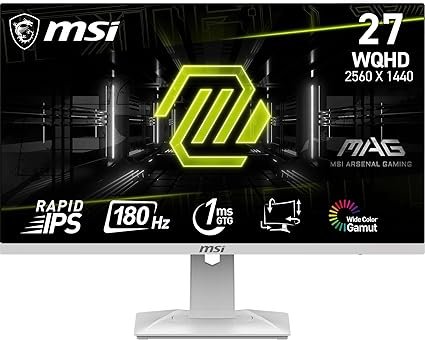
MSI G274PF 27-inch monitor
A 27-inch IPS screen at 1080p and 180Hz with Adaptive Sync, a height-adjustable stand, VESA mounting and HDMI and DisplayPort inputs.
Check current price on Amazon- 180Hz for smooth games and scrolling
- Height-adjustable stand, VESA mount
- HDMI and DisplayPort
- 1080p looks soft at 27 inches for text
- Built-in speaker is basic
For a second screen on a small desk or a setup you carry, a USB-C portable monitor plugs into the mini PC’s USB4 or USB-C video port with one cable: see our portable monitors and dual-screen setups.
Which keyboard and mouse?
Pick a set with a USB receiver: unlike Bluetooth, it works in the BIOS and during a Windows installation. Multi-device keyboards are worth it if you switch between the mini PC and a laptop.
Bluetooth keyboards only connect once Windows has loaded, which is a problem the day you need the BIOS menu, a boot drive or a recovery screen. A combo with a 2.4GHz USB receiver avoids that; if you prefer Bluetooth, keep a cheap wired keyboard in a drawer. Choose the layout for your desk: a full-size keyboard with a number pad for spreadsheets, a compact or slim one to keep the mouse closer.
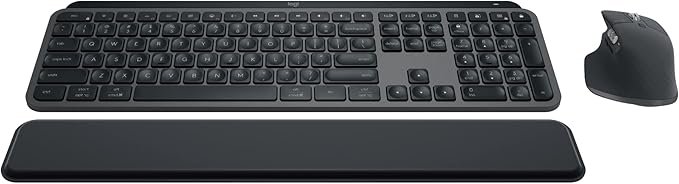
Logitech MX Keys S Combo
A backlit wireless keyboard, the MX Master 3S mouse and a palm rest; connects by Bluetooth or USB receiver and switches between several computers.
Check current price on Amazon- Comfortable keys, backlighting
- Switches between three devices
- Rechargeable over USB-C
- Expensive for a combo
- Full-size: takes desk space
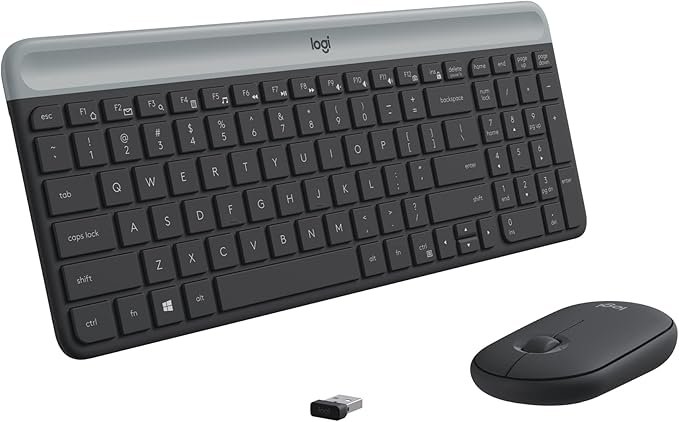
Logitech MK470 Slim Combo
A slim, quiet keyboard and mouse on a single 2.4GHz USB receiver: works in the BIOS and keeps a small desk tidy.
Check current price on Amazon- USB receiver works before Windows loads
- Quiet keys and clicks
- Compact layout
- No backlight
- Small mouse for large hands
More choices, including the JLab Epic Work bundle and compact mechanical keyboards, on our keyboards and mice page.
Do you need a USB hub or a dock?
A small USB hub on the desk is enough if the mini PC is mounted out of reach. A dock is worth it only if you want extra storage, display outputs or charging through one cable, and a USB4 dock needs a USB4 port on the mini PC.
Mounting the mini PC behind the screen hides its front ports, so plug a short-cable hub into a rear port and keep it on the desk for USB drives, a webcam or a phone cable. A 5 Gbit/s hub covers keyboards, webcams and flash drives; choose 10 Gbit/s or more for external SSDs. Docks go further: the Beelink EX Mate Pro, for example, adds four M.2 SSD slots, 2.5GbE, HDMI and 96W charging over a USB4 v2 connection.
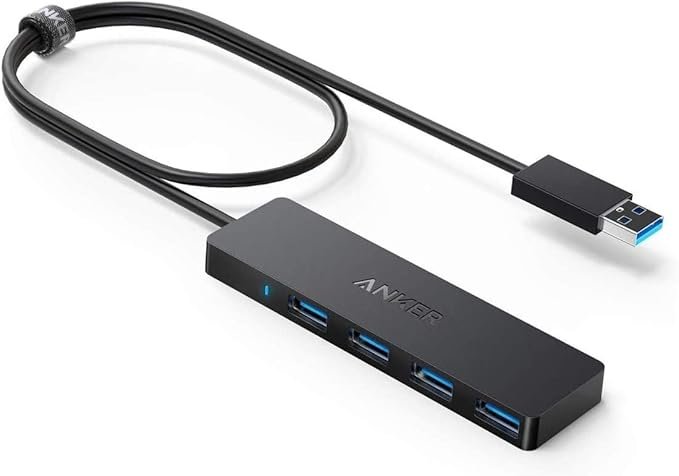
Anker 4-Port USB Hub
Four USB 3.0 ports at 5 Gbit/s on a 2 ft USB-C cable: brings the ports of a mounted mini PC back to the desk.
Check current price on Amazon- Small, no power adapter needed
- Long enough cable for a VESA-mounted PC
- 5 Gbit/s shared across the ports
- No charging
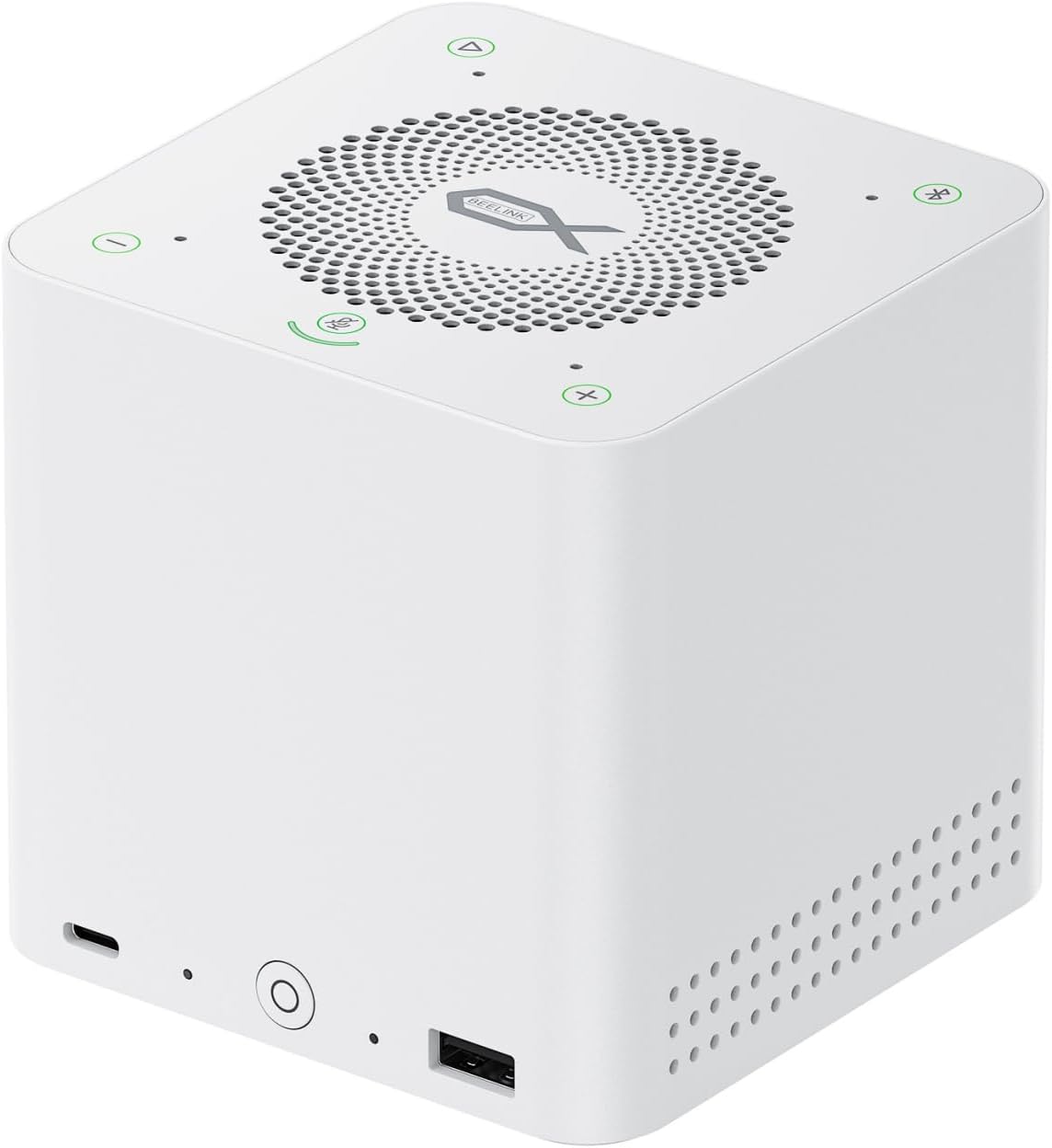
Beelink EX Mate Pro
A USB4 v2 dock with four M.2 SSD slots, 2.5GbE, HDMI and 96W charging, for mini PCs with a USB4 port.
Check current price on AmazonRead our Beelink EX Mate Pro review
- Four SSD slots in one box
- 2.5GbE and charging
- One cable to the mini PC
- Needs a USB4 port
- SSD slots are PCIe x1
Our USB hubs guide compares more models.
Speakers or headset?
Most mini PCs have no speakers, so add USB-powered desktop speakers for music and calls, or a headset for gaming and open offices. Monitor speakers are usually too weak.
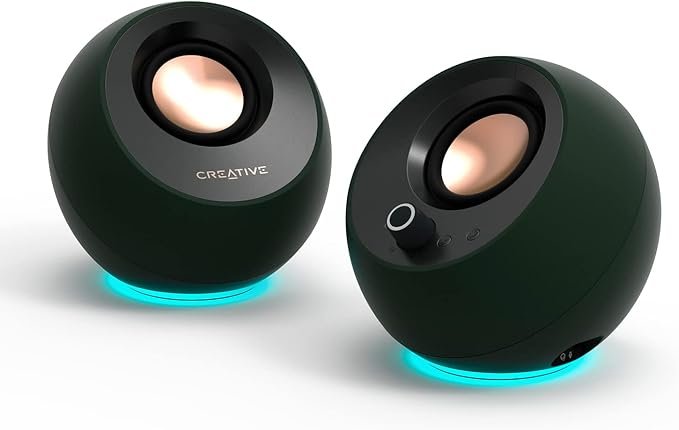
Creative Pebble Pro
Small 2.0 desktop speakers powered and connected over USB-C, with Bluetooth 5.3 and a headset jack: one cable to the mini PC.
Check current price on Amazon- USB-C power and audio, no extra outlet
- Bluetooth for a phone
- Headset jack on the front
- Limited bass
- RGB lighting not for everyone
For deeper sound, a 2.1 set with a subwoofer such as the Klipsch ProMedia 2.1 fills a room; see our compact speakers page.
External storage and backups
A portable SSD on a 10 Gbit/s USB port is the simplest backup for a mini PC, whose internal storage is often smaller than a desktop’s.
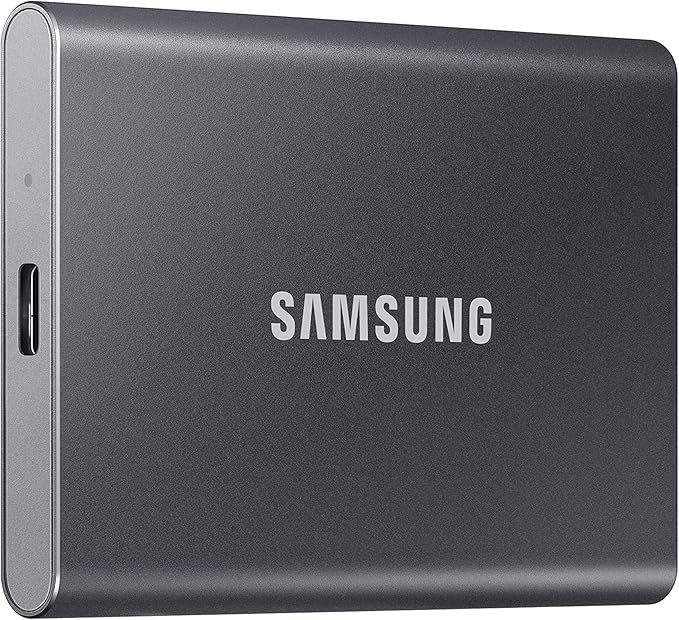
Samsung T7 Portable SSD
A pocket-size USB 3.2 Gen 2 SSD (up to about 1,050 MB/s) for backups, photo libraries and moving files between computers.
Check current price on Amazon- Fast on a 10 Gbit/s port
- Small and sturdy
- Slower on 5 Gbit/s ports and hubs
If your mini PC has a free M.2 slot, an internal second SSD is cheaper per terabyte: see how to upgrade a mini PC’s RAM and SSD.
Three example setups
Office: one 24–27-inch screen, a slim receiver combo and USB speakers. Productivity: two screens, a multi-device keyboard and a dock. Gaming: a high-refresh monitor, a wireless gaming mouse and, on OCuLink models, an external graphics card.
| Setup | Mini PC | Screen | Input | Extras |
|---|---|---|---|---|
| Office / family | Intel N150 or Ryzen 5 | 24–27-inch 1080p | Logitech MK470 | Creative Pebble Pro, VESA mount |
| Productivity | Ryzen 7 / Ryzen AI 9, 32GB | 27-inch 1440p + second screen or portable monitor | Logitech MX Keys S Combo | USB hub or Beelink EX Mate Pro, Samsung T7 |
| Gaming | Strix Halo, or an OCuLink model + eGPU | MSI G274PF (180Hz) | Logitech G305 + compact keyboard | Headset; see our OCuLink eGPU guide |
Cables and power
Run every cable to one point behind the monitor, put the mini PC’s power brick in a tray or on a surge protector under the desk, and use cables just long enough to reach.
- Power brick: the mini PC’s adapter is the bulkiest part of the setup. Velcro it under the desk or in a cable tray rather than leaving it on the floor.
- Surge protector: plug the mini PC, monitor and speakers into one strip; switching it off at night cuts standby draw.
- Auto power-on: many mini PCs have a BIOS option to start when power returns, useful if the strip is switched off or the PC is hard to reach.
- Wired network: if your router is near, an Ethernet cable gives a steadier connection than Wi-Fi for calls and large downloads.
FAQ
What accessories do I need for a mini PC?
A monitor, a keyboard and a mouse are essential. Most people also benefit from USB-powered speakers or a headset, since most mini PCs have none, and a small USB hub if the mini PC is mounted behind the screen. A VESA bracket is usually included with the mini PC.
Can I mount a mini PC behind my monitor?
Yes, if the monitor has VESA holes (75 or 100 mm). Most mini PCs include a VESA bracket. Leave space for air around the case and check that the cables reach and the monitor’s own ports stay accessible.
Is a Bluetooth keyboard OK for a mini PC?
For everyday use, yes. But Bluetooth keyboards don’t work in the BIOS or before Windows loads, so a combo with a USB receiver is more practical, or keep a wired keyboard for setup and recovery.
Can a mini PC run two monitors?
Yes. Most Ryzen mini PCs drive three or four displays through HDMI, DisplayPort and USB4; many Intel N-series models drive two or three. Check your model’s display outputs and supported resolutions before buying screens.
Do I need a docking station for a mini PC?
Usually not: a mini PC already has its ports. A dock helps when you want extra SSD storage, more display outputs or one-cable connections, and a USB4 dock requires a USB4 port on the mini PC. A small USB hub is enough for most desks.