
How to Upgrade a Mini PC’s RAM and SSD: Step-by-Step Guide (2026)
Adding memory or a bigger SSD is the cheapest way to make a mini PC last longer, and on most models it takes about fifteen minutes with a small screwdriver. The catch is that many recent mini PCs have soldered memory that can’t be changed. This guide shows how to check what your model allows, which RAM and SSD to buy, and how to do the upgrade without losing your data or your Windows installation.
In short
First check whether your memory is in SO-DIMM slots or soldered (LPDDR5X on the Ryzen AI 9 HX 370 boxes like the Peladn HO5, and on every Strix Halo model, can’t be upgraded). If it’s in slots, buy two identical DDR5 SO-DIMM modules (or DDR4 on older models) so the memory runs in dual channel. For storage, almost every mini PC takes a standard M.2 2280 NVMe SSD, and many have a free second slot. Before opening anything: back up, and save your BitLocker recovery key. The first boot after a memory change can show a black screen for a minute or two while the memory is trained: that is normal.
What changed in this update (Oct 12, 2026)
This page used to be a general “complete guide to RAM” written in 2025. We turned it into a step-by-step tutorial that also covers SSDs. We corrected the idea that DDR4 is “the current standard”: new mini PCs use DDR5 SO-DIMM or soldered LPDDR5X, and 64GB SO-DIMM modules now allow 128GB in two slots on supported models. We added the BitLocker step, the first-boot memory training delay, and a note on Crucial, whose consumer RAM and SSDs Micron stopped shipping in early 2026.
Can you upgrade your mini PC?
You can upgrade the memory only if it sits in SO-DIMM slots; soldered LPDDR memory is fixed for life. The SSD can be replaced or added on almost every mini PC, because nearly all of them use M.2 slots.
The quickest check is the spec sheet or the Amazon listing: “DDR5 SO-DIMM, 2 slots, up to 96GB” means upgradeable; “LPDDR5X” or “onboard memory” means soldered. Soldered memory is faster and more efficient, which is why the Ryzen AI 9 HX 370 and Strix Halo chips use it, but you must choose the capacity when you buy.
| Mini PC | Memory | Upgradeable? |
|---|---|---|
| BOSGAME M4 Plus | DDR5, 2 SO-DIMM slots | Yes, up to 64GB |
| GMKtec K8 Plus | DDR5-5600, 2 SO-DIMM slots | Yes, up to 96GB |
| GEEKOM AX8 Max | DDR5-5600, 2 SO-DIMM slots | Yes, up to 64GB |
| GEEKOM A9 Max | DDR5-5600, 2 SO-DIMM slots | Yes, up to 128GB |
| Minisforum AI X1 Pro-370 | DDR5-5600, 2 SO-DIMM slots | Yes, up to 128GB |
| Peladn HO5, GMKtec EVO-X1 | LPDDR5X-7500, soldered | No (SSD only) |
| GMKtec EVO-X2, Minisforum MS-S1 Max | LPDDR5X-8000, soldered | No (SSD only) |
| Intel N100 / N150 mini PCs | One slot or soldered, single channel | Depends on the model |
Also check the warranty terms. Most brands allow memory and SSD upgrades, and in the US the FTC has warned companies that “warranty void if removed” stickers generally can’t be used to deny coverage. Still, damage you cause while opening the case isn’t covered, so take your time.
Which RAM should you buy?
Buy the same memory type as your mini PC (almost always DDR5 SO-DIMM today, DDR4 on older models), in a matched pair of two identical modules, at the speed your processor supports (DDR5-5600 for recent Ryzen chips).
- Type: DDR5 SO-DIMM (262 pins) and DDR4 SO-DIMM (260 pins) are not interchangeable; the notch is in a different place. Laptop memory is SO-DIMM, so “laptop RAM” fits.
- Two identical modules: filling both slots enables dual channel, which nearly doubles memory bandwidth. It matters most for integrated graphics: a Radeon 780M with a single module loses a large share of its gaming performance.
- Speed: faster modules work but run at the speed the processor supports. Mini PC BIOSes rarely offer XMP or EXPO, so don’t pay extra for gaming kits.
- Capacity: 16GB is the minimum for Windows 11 in 2026, 32GB is the comfortable choice for most people, 64GB suits virtual machines and heavy editing, and 96–128GB is for local AI models or home labs. Check your model’s official maximum; 2 × 64GB kits work in many recent mini PCs, but not all.
- Intel N-series: the N100, N150 and N97 support a single memory channel. Intel lists 16GB as the maximum; many owners run 32GB, but it isn’t guaranteed.
Memory prices in 2026
RAM prices rose sharply in 2026 as memory makers shifted production to AI data centers, and Micron stopped shipping Crucial-brand consumer memory and SSDs at the end of February 2026 (existing warranties are still honored). Crucial modules are still sold while stock lasts; Corsair (for example this 32GB DDR5 SO-DIMM), Kingston and Samsung are the usual alternatives. Our RAM crisis guide explains what’s driving prices and when to buy.
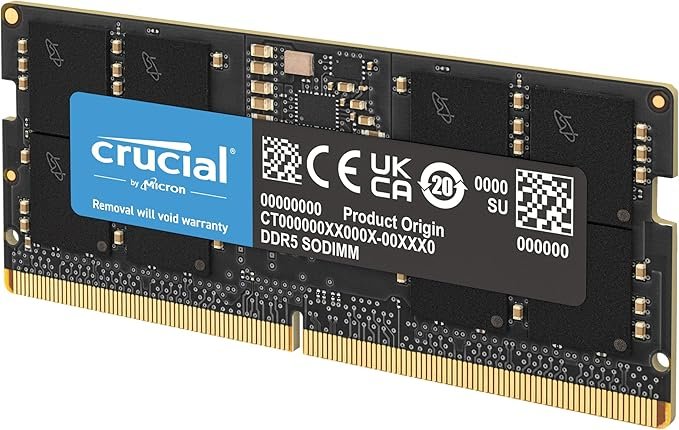
Crucial 32GB DDR5 SO-DIMM kit (2 × 16GB)
A 2 × 16GB DDR5-5600 SO-DIMM kit that also runs at 5200 or 4800 if your processor requires it: the standard 32GB upgrade for Ryzen and Intel Core mini PCs.
Check current price on Amazon- Matched pair for dual channel
- Runs at lower speeds automatically
- Wide compatibility
- Brand discontinued: stock is limited
- Prices up sharply in 2026
For older DDR4 mini PCs (many Intel 10th–12th gen and Ryzen 5000 models), the same rules apply with DDR4 SO-DIMM at 3200 MHz: for example the Crucial 16GB DDR4 kit or the Corsair 32GB DDR4 kit.
Which SSD should you buy?
Buy an M.2 2280 NVMe SSD; PCIe 4.0 is the right generation for nearly every mini PC from 2022 onward. Check the length and the PCIe generation of a second slot before buying, because some are shorter (2230 or 2242) or slower.
- Length: the four digits are the size: 2280 is 22 mm wide and 80 mm long. Second slots in compact models are often 2242 or 2230 (the GEEKOM A9 Max’s second slot, for example, is 2230).
- Generation: a PCIe 5.0 SSD runs at PCIe 4.0 speed in a mini PC and gets hotter; it’s money wasted. PCIe 3.0 drives are fine for a second storage drive.
- Thickness: remove any large heatsink; mini PCs use a thin thermal pad or a metal cover instead. Single-sided drives are safer in thin cases.
- Capacity: 1TB is the practical minimum for Windows and apps; 2TB or more for games, photo libraries or local AI models (a single large model can take 40GB or more).
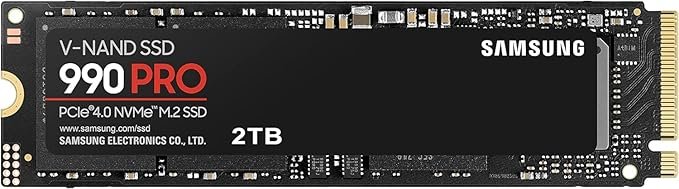
Samsung 990 PRO
A top PCIe 4.0 NVMe SSD with consistent speed under load, a good main drive for gaming and editing.
Check current price on Amazon- Among the fastest PCIe 4.0 drives
- Samsung Data Migration for easy cloning
- Versions without heatsink fit mini PCs
- More than most mini PC users need
- Buy the version without heatsink
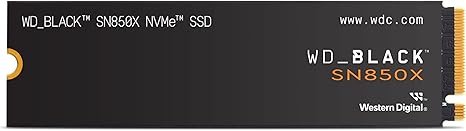
WD Black SN850X
A fast PCIe 4.0 NVMe SSD sold up to 8TB, a good choice for a large game or media library in a mini PC.
Check current price on Amazon- High capacities available
- Fast in games and file copies
- Avoid the heatsink version in mini PCs
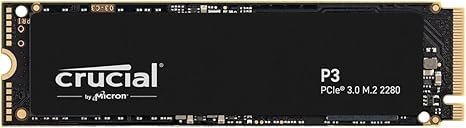
Crucial P3
A PCIe 3.0 NVMe SSD for storage rather than speed: fine as a second drive for documents, media or backups.
Check current price on Amazon- Low cost per terabyte
- Low heat
- Slower on long transfers (QLC memory)
- Brand discontinued: stock is limited
Your old SSD needn’t go to waste: in a USB enclosure such as the UGREEN NVMe enclosure it becomes a fast portable drive for backups. More options on our external storage page.
Before you start
Back up your files, save your BitLocker recovery key, shut the mini PC down completely and unplug it. You need a small Phillips screwdriver (PH0 or PH1) and, ideally, a plastic opening tool.
- Back up anything you can’t lose, even for a RAM upgrade.
- Save your BitLocker recovery key. Many Windows 11 PCs encrypt the drive automatically. After a hardware change, Windows may ask for the 48-digit key at startup. Find it at account.microsoft.com/devices/recoverykey or in Settings › Privacy & security › Device encryption, and write it down.
- Download your mini PC’s manual to see where the screws and slots are. Some models hide screws under the rubber feet; others have a magnetic or snap-on lid.
- Shut down fully (Shift + Shut down in Windows), unplug the power adapter and every cable, then press the power button once to drain residual power.
- Discharge static by touching a metal object, and work on a hard, clean surface rather than carpet.
How to replace the RAM, step by step
Open the case, release the two clips on each side of the old module, insert the new module at a 30-degree angle until the gold contacts disappear, press it down until it clicks, then close the case and let the first boot finish.
- Open the case. Remove the bottom screws (or lift the lid), and gently lift the cover. Watch for a Wi-Fi antenna or SSD cable attached to the lid; don’t pull on it.
- Remove the old modules. Push the two metal clips at the ends of a module outward; it pops up at an angle. Slide it out.
- Insert the new module. Line up the notch with the slot key, push the module in at about 30 degrees until the contacts are almost fully inside, then press it down flat until both clips snap in. Repeat for the second slot (start with the lower module if they are stacked).
- Close the case without pinching any cable, and reconnect the power and a monitor.
- Wait during the first boot. DDR5 systems train the new memory at the first start: the screen can stay black for one to several minutes. Don’t switch off; it happens only once.
- Check the result. In Task Manager › Performance › Memory, check the total, the speed and “Slots used: 2 of 2”.
How to add or replace the SSD, step by step
To add storage, fit the new SSD in a free M.2 slot and initialize it in Windows. To replace the main drive, either clone the old SSD to the new one first, or install Windows fresh on the new drive; Windows reactivates automatically on the same mini PC.
- Choose clone or fresh install. Cloning keeps everything as it is: connect the new SSD in a USB enclosure (or in the free slot) and copy the old drive with Samsung Data Migration (for Samsung drives) or Clonezilla. A fresh install is cleaner: create a USB installer with Microsoft’s Media Creation Tool.
- Open the case as for the RAM. The SSD is a small card held by a single screw or a plastic latch, sometimes under a metal cover or a fan bracket.
- Remove the old SSD (if replacing it): unscrew it; it lifts to an angle; slide it out. Keep the thermal pad if there is one.
- Insert the new SSD at an angle into the M.2 slot, press it flat and secure it with the screw or latch. Don’t overtighten.
- Put the thermal pad and cover back, close the case and reconnect.
- Boot. For a cloned drive, Windows starts as before (enter the BitLocker key if asked). For a fresh install, boot from the USB installer (usually F7, F11 or F12 at startup) and install on the new drive.
- Set up a second drive. If you added a drive, open Disk Management (right-click Start), initialize it as GPT, then create a “New Simple Volume” to see it in File Explorer.
Troubleshooting
A black screen after a RAM change is usually memory training (wait) or a module not fully seated (reseat it). A new SSD that doesn’t appear usually just needs initializing in Disk Management.
| Symptom | Likely cause | Fix |
|---|---|---|
| Black screen at first start | Memory training | Wait 2–5 minutes before doing anything |
| Still black after 5 minutes, or beeps | Module not seated, wrong type, unsupported capacity | Reseat both modules; test one module at a time; update the BIOS |
| Less memory than installed | One module not detected, or memory reserved for graphics | Reseat; check “Slots used”; graphics memory is shown as “Hardware reserved” |
| BitLocker asks for a key | Hardware change detected | Enter the recovery key saved before the upgrade |
| New SSD not in File Explorer | Drive not initialized | Disk Management › Initialize (GPT) › New Simple Volume |
| Cloned drive shows old capacity | Partition not extended | Disk Management › Extend Volume on C: |
FAQ
Can I upgrade the RAM in any mini PC?
No. Only mini PCs with SO-DIMM slots can take new memory. Models with soldered LPDDR5X memory, including Ryzen AI 9 HX 370 boxes like the Peladn HO5 and all Strix Halo mini PCs, keep the memory they were sold with. Their SSD can still be upgraded.
Do I need two RAM sticks in a mini PC?
Yes, for best performance. Two identical modules run in dual channel, which nearly doubles memory bandwidth and makes a large difference to integrated graphics. Intel N100 and N150 mini PCs are the exception: they support one channel only.
Can I mix DDR4 and DDR5, or different modules?
You cannot mix DDR4 and DDR5: they use different slots. Mixing two DDR5 modules of different brands or sizes often works, but identical modules are the reliable choice.
Why is my mini PC’s screen black after adding RAM?
DDR5 systems train new memory at the first start, which can take one to several minutes with a black screen. Wait before switching off. If nothing appears after about five minutes, reseat the modules and try one module at a time.
Do I need to reinstall Windows after replacing the SSD?
Not if you clone the old drive to the new one. If you install fresh, Windows reactivates automatically on the same mini PC because the license is tied to the hardware. Save your BitLocker recovery key before either option.
What size SSD fits a mini PC?
Most mini PCs take an M.2 2280 NVMe SSD in their main slot. Second slots may be 2280, 2242 or 2230, and some run at PCIe 3.0 or fewer lanes, so check the manual before buying a second drive.
Does upgrading the RAM void the warranty?
Most mini PC brands allow memory and SSD upgrades, and in the US the FTC has said warranty-void stickers generally can’t be used to refuse coverage. Damage caused while opening the case is not covered, so check your brand’s terms and work carefully.
Related
- RAM crisis 2026: why prices are up and when to buy
- What is OCuLink? Add an external GPU to a mini PC
- Best mini PC for local AI
- External storage for mini PCs
- Mini PC desk setup: accessories that matter
Sources
- StorageReview, Micron exits the Crucial consumer business (Dec 2025)
- William Lam, 128GB in mini PCs with 64GB DDR5 SO-DIMM (verified models, longer first boot)
- ServeTheHome, the 128GB DDR5-5600 SO-DIMM kit used in mini PCs
- FTC, staff warning on warranty-void stickers (April 2018)
- Microsoft Support, find your BitLocker recovery key